Adding A Non-Scheduled Activity for a Member
You can always add an activity that has not been scheduled. This might be because you had an activity that was not expected or to capture an activity for a member that was done by an external or other staff person.
1. On the top bar, go to Action and scroll down to Run Script.
2. The Run Script pop up gives you the option to select the script you wish to use. Select Contact Script (or other).
3. You have the option of running it in a single screen or as a work flow.
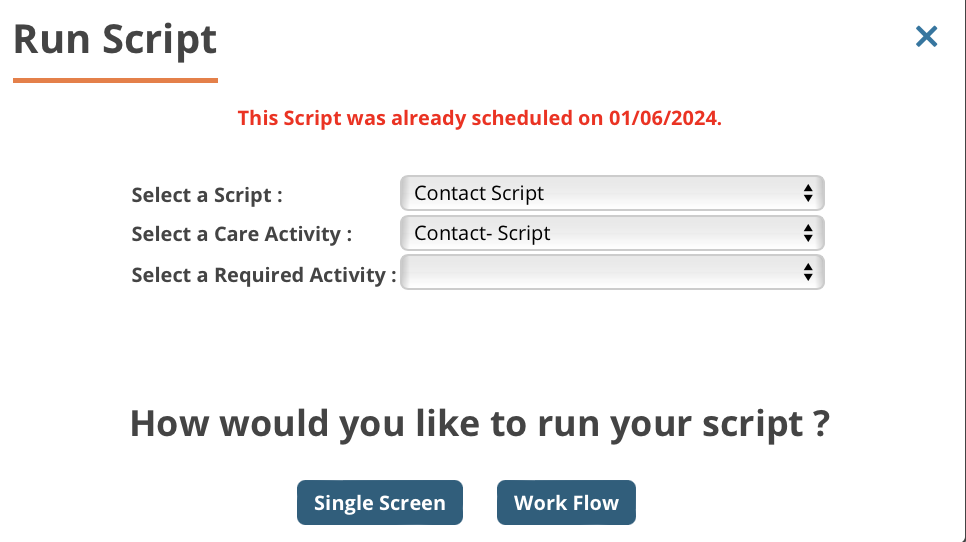
4. You then get another option of how you would like the questions to be pre-populated.
5. This will start the script. Complete or review the summary.
6. Click on Save & End Script. (you can use any of the options as previously defined.)
7. You will get a confirmation that this is what you wish to do.
8. Clicking the Ok will generate the Capture Activity Outcome form. Complete this form to reflect the activity that has occurred. Include a Note about the outcome of this activity.
9. Click on Save and Proceed or Save and Add Activity.
10. If you click on Save and Proceed, you will be taken to a view the content of the script.
11. If you click on Save and Add Activity, you get the Add Activity screen and can schedule an activity to go on your calendar.
12. Click on Add and Close.
13. The scheduled activity now shows on your calendar.
Related Articles
How to Update a Member’s Address in Guiding Care
Issue: Users need to update or correct a member’s address within Guiding Care but are unsure where to do this. Steps to Update a Member’s Address: Navigate to the member’s profile and select the Member Details tab. Locate the Address panel on the ...Member Missing from Unassigned List – Assigned to Another Agency
Issue: A member appears on the BAF file but is not listed under “unassigned” in your CHN portal and appears assigned to a different agency. Likely Cause: The member is still actively assigned to another agency in NC Tracks, which overrides the ...Completing Member Assessments - Tailored Plan
Purpose Completing assessments accurately and efficiently is essential for effective member care management. This article provides a clear, step-by-step guide on scheduling, performing, and finalizing assessments within the CHN Care Management ...Removing Goals (OGIs) from a Member’s Care Plan
Purpose This article explains how to remove or delete a Goal (OGI – Opportunity, Goal, Intervention) from a member’s Care Plan in GuidingCare. Steps Go to Member Details From the main navigation, open the member’s profile. On the left-hand menu, ...Adding A Caregiver to the Care Team
Here are the steps to add an existing Caregiver to the member's Care Team: 1. Member Info > Care Team 2. In the search select Care Team Type dropdown and select Caregiver > click search 3. The Add option should show up now. Click Add 4. In the ...