How to Bulk Assign Members to a Care Manager
- Navigate to Member Assignment
- Go to Manage.
- Select Manage Care Member and
Mailing.
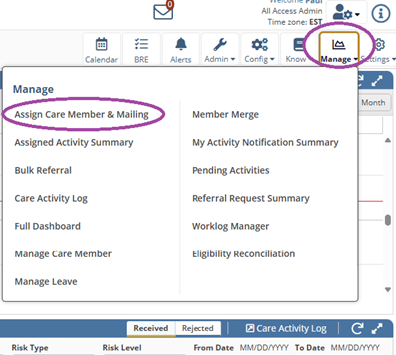
- Apply Filters
- Select the relevant Client
(organization name) from the dropdown.
- Choose Unassigned to
filter members without a care manager, or
- Enter the current care staff
name if reassigning from another Care Manager.
- Review Member List
- Wait for the member list to
populate based on your filters.
- Assign New Care Manager
- Enter the Care Manager's name
you wish to assign the members to.
- Select Members
- Check the boxes next to each
member you want to assign.
- Optional - Assign Scheduled Tasks
- Check the box labeled “Assign
scheduled tasks to new CM”.
- Confirm Assignment
- Click Assign Care Manager
to complete the bulk assignment process.
- Verify Assignment
- Review the confirmation message
or updated member list to ensure the assignment was successful.
- Following these steps ensures accurate and efficient bulk assignment of members to their designated care manager.
Related Articles
Why Members Assigned in Bulk Appear Back as Unassigned
Summary: This article explains why members assigned in bulk may revert to "Unassigned" status and outlines the system rule that causes this behavior. Issue: Users may observe that members assigned in bulk to a care manager (e.g., Mikaylah) appear ...
How to Assign A New Program in Guiding Care
Open the Member Profile in Guiding Care. . Go to Programs and click Add New Program. Check the box for Add Clinical Program if applicable. Select Clinical Program from the list. Enter the Start Date and End Date (not required). Set the Status to ...
Exporting Assigned & Eligible Members from GC
Learn how to generate and export a list of members currently assigned to your organization and marked as eligible using the GC platform. Step-by-Step Instructions: Log into GC. Navigate to Member Assignment: From the Home Screen, go to: Manage > ...
How to Identify Members Counted in “Active with Billable Contact” Metrics (LEAP Dashboard)
Purpose This article explains how to identify which members are included (and excluded) in the “Active with Billable Contact” counts shown on the LEAP Dashboard for a specific Care Manager. This process helps reconcile discrepancies between internal ...
Removing Deceased, Disenrolled, or Transferred Members from My Members Widget
Problem Statement Users report that deceased, disenrolled, or transferred-out members are still showing in the My Members widget. These members are flagged with a red exclamation mark next to their name. Cause This behavior is expected. In ...